“Template LM” Extension
 This extension helps to keep your content and templates lean and clean on a sustained basis.
Websites want to be attractive to visitors by being up to date using state of the art look and feel. For this content creation aims for bringing the latest and greatest features into the website usually backed by new component templates that reflect the new features. Over time, a series of latest and greatest features enter the stage and the previously lasted and greatest features come out of focus.
Typically, this leads to accumulating content and templates that are no longer that relevant but still consume resources in the Magnolia CMS instance. For CMS responsible persons it is usually hard to get an overview what content/templates are relevant and what should be tidied up to be removed from the system. The Template Lifecycle Management (Template LM) extension aims to support responsible persons here. It allows to asses the relevance of the content and templates and offers a defined way to get them out of the system using a managed process.
Features
The “Template LM” extension provides the following features:
Usage Analysis
- list all available template definitions in Magnolia author instance
- provide detailed usage information where and how often templates are referenced in pages
- show broken template references to detect dead content
- export detailed template usage report
Lifecycle Management
- allow for arranging templates in a user defined folder structure
- assign lifecycle state to templates (experimental, operational, deprecated, end-of-life)
- show lifecycle state for authors when creating pages or components
- exclude individual templates from authoring to avoid creating new content with outdated templates
Usage
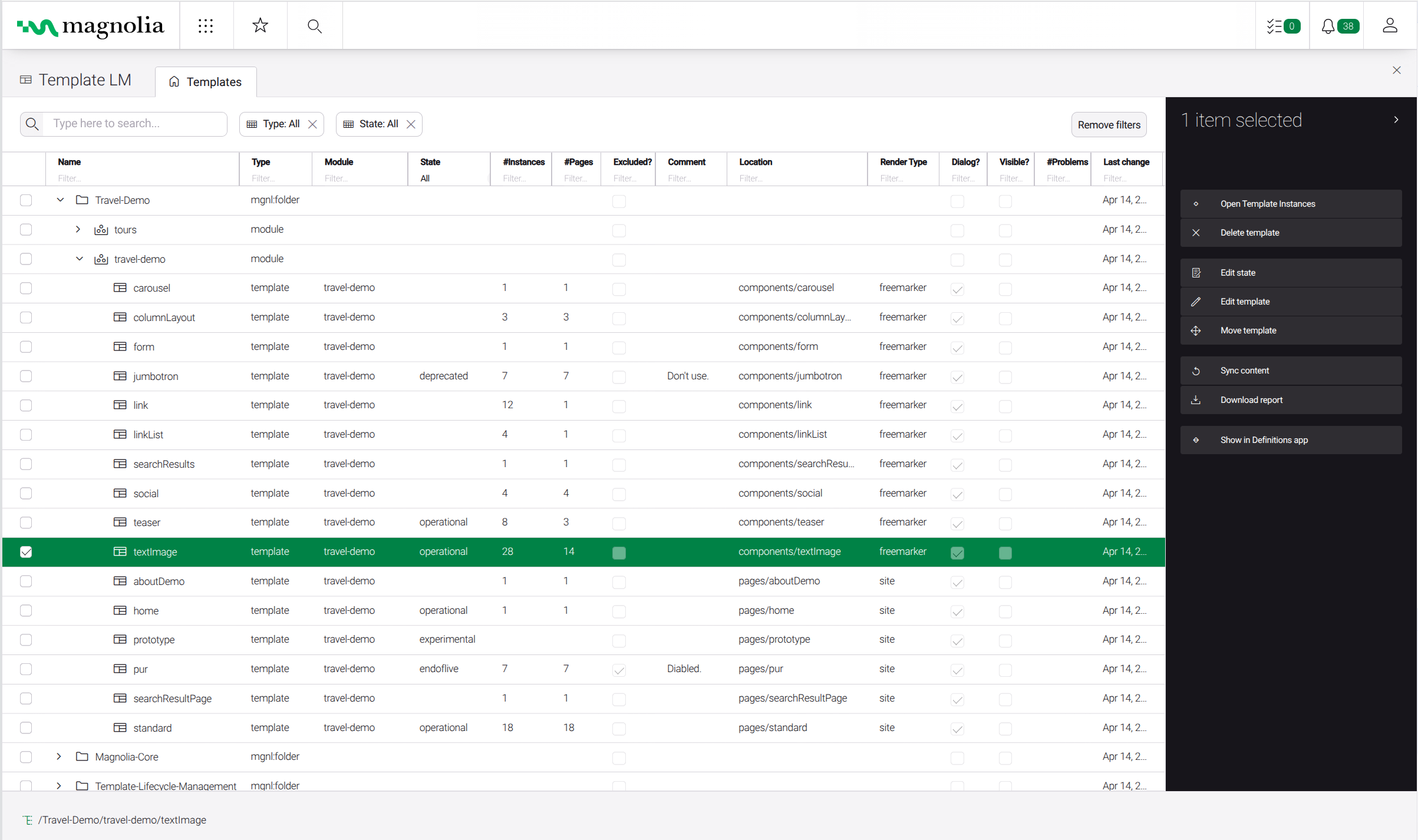
The template lifecycle management comes as “Template LM” Magnolia app and follows the usual ui concept.
For initial start use the “Sync content” action from the action bar on the right hand side. With this all existing template definitions are captured and listed in a separate workspace. The templates are grouped by the modules where they are actually defined in. You can rerun the “Sync content” action at any time, e.g. after new templates where added into the system. Please note that depending on your amount of templates in your system and their usage inside the page content, this actions might take more time until it finishes.
The initial list might be rather technical and may not be easy to read. For this you can organize the modules into folders. Folders can be created, renamed, deleted and moved around. Set up the folders that you would like to organize the template modules into. Then you can move the template modules into your folder via drag and drop in the main browser.
Via the “Edit Template” action a detail panel opens and you can add lifecycle management information (state, comment, exclusion-flags) to the template. There is also an “Edit State” action which allows for bulk changes of all templates nested inside the current selection (folder or module).
The state that is associated with the template will be shown in the template selection drop-down to the author when creating a page or adding a new component. By this the author gets a hint, if it is meaningful to use the template or not. Furthermore, the template can be excluded for authoring, so that the author does not see it. This is useful for actively deprecating templates and avoid that they are still used when creating new content. This feature can be disabled by the configuration property “templateSelectionStateDecorationEnabled” in the “Template LM” module via the “Configuration” app.
With the content sync also the template usage in all pages is captured and shown as instance counts in the main browser with the option to drill down into the individual template references. When a template has instance counts assigned, the “Open Template Instances” action opens the instances list in another tab for this template. Here a detailed list is shown with all locations where the template is actually used in the pages content. With the “Show in JCR browser app“, “Show in Pages app” and “Show in Definitions app“, you can navigate the respective apps to gain more information on the template and it’s usage.
Additionally, via the “Download Report” actions you can download a detailed report of all occurrences in the pages content as “comma separated values” (csv) file. This file can then be used for further analysis via additional tools.
Screenshots


Request “Template LM” Extension