“Asset LM” Extension

This extension helps to keep your digital assets lean, organized and under control on a sustained basis.
Websites strive to engage visitors through rich, visually appealing experiences powered by images, videos, and documents. New campaigns, design updates, and brand evolutions continuously introduce fresh assets to support this goal. Over time, however, the once “latest and greatest” assets lose relevance as they are replaced or forgotten.
Typically, this results in an accumulation of outdated, unused or duplicate assets scattered across Magnolia CMS workspaces. For CMS teams, it is often challenging to maintain an overview of which assets are still in use, which are obsolete, and which should be archived or removed. The Asset Lifecycle Management (Asset-LM) extension addresses this challenge. It enables responsible teams to assess the relevance of assets and provides a structured process to manage their lifecycle — from active use through deprecation to safe cleanup.
Features
The “Asset LM” extension provides the following features:
Usage Analysis
- list all available assets in Magnolia workspaces
- provide detailed usage information where and how often assets are referenced in pages
- show broken asset references to detect dead content
- export detailed asset usage report
Lifecycle Management
- assign lifecycle state to assets (experimental, operational, deprecated, end-of-life)
- assign exclude individual assets from authoring flag to avoid creating new content with outdated assets
Usage
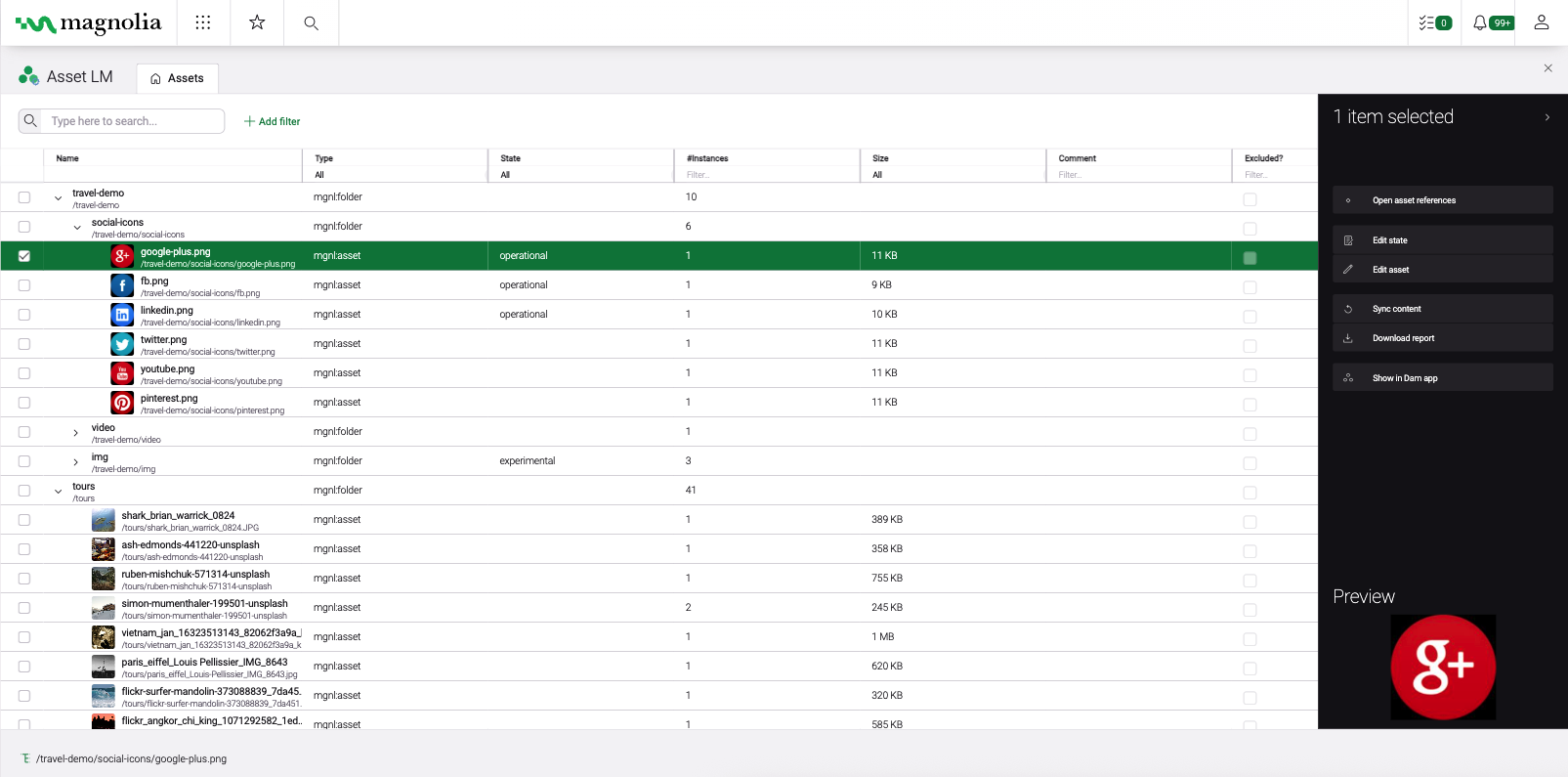
The asset lifecycle management comes as “Asset LM” Magnolia app and follows the usual ui concept.
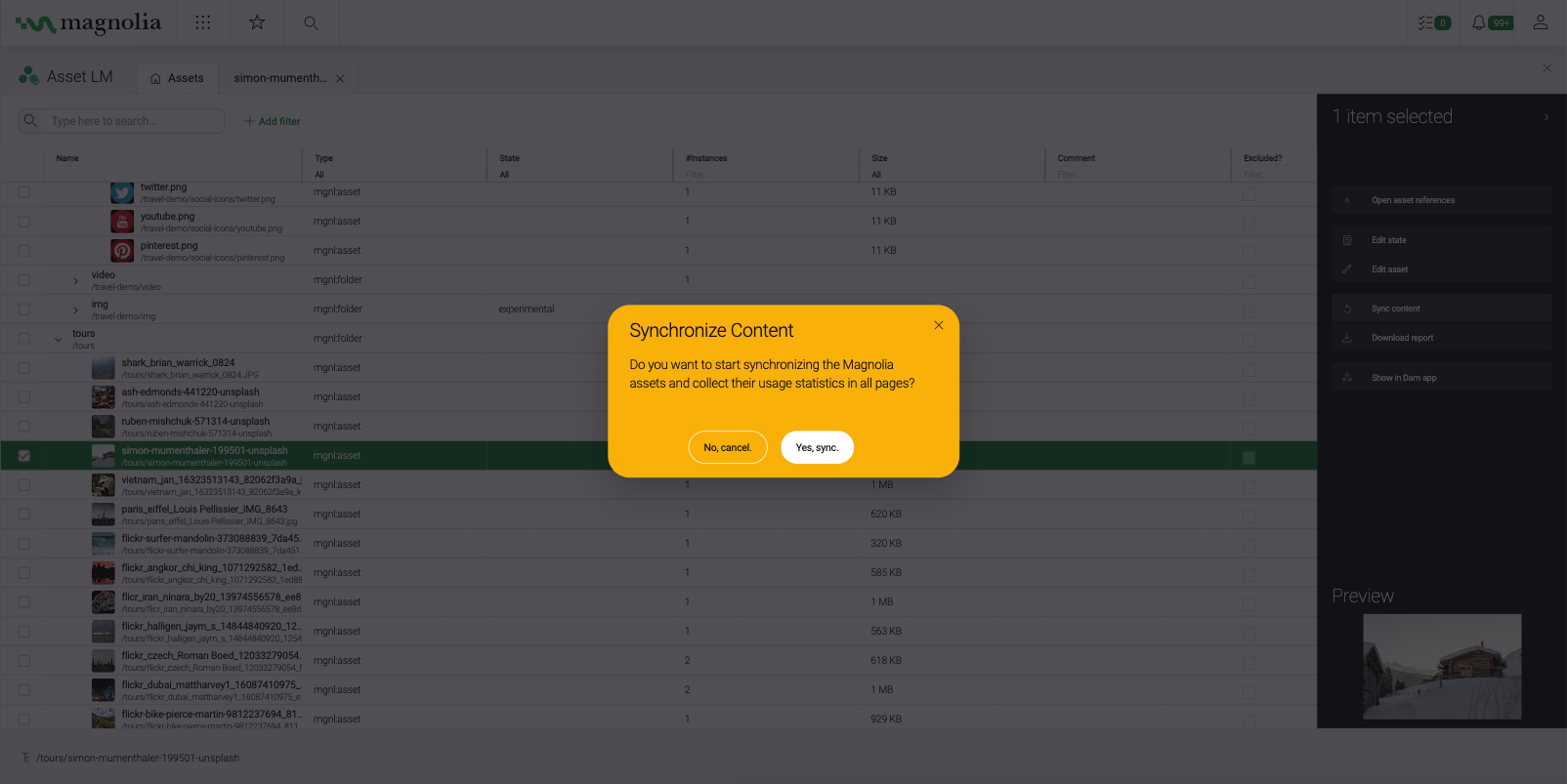
For initial start use the “Sync content” action from the action bar on the right hand side. With this all existing assets are captured and listed in a separate workspace. The assets are grouped by the folders where they are actually defined in, keeping the same structure. You can rerun the “Sync content” action at any time, e.g. after new assets where added into the system. Please note that depending on your amount of assets in your system and their usage inside the page content, this actions might take more time until it finishes.
Via the “Edit Asset”/”Edit Folder” action a detail panel opens and you can add lifecycle management information (state, comment, exclusion-flags) to the asset/folder. There is also an “Edit State” action which allows for bulk changes of all asset and folders.
With the content sync also the assets usage in all pages is captured and shown as instance counts in the main browser with the option to drill down into the individual asset references. These references may span multiple workspaces, which can be defined through the configuration property “assetInstanceSearchWorkspaces” in the “Asset LM” module via the “Configuration” app. If a reference to an asset is detected that does not exist in the Dam app, it is automatically listed under the “undefined-asset-references” folder in the main browser. This makes it easy to spot missing assets, helping editors quickly identify issues, clean up invalid references, and maintain a consistent and reliable asset library.
When a asset has instance counts assigned, the “Open Asset References” action opens the instances list in another tab for this asset. Here a detailed list is shown with all locations where the asset is actually used in the pages content. With the “Show in JCR browser app“, “Show in Source app” and “Show in Dam app“, you can navigate the respective apps to gain more information on the template and it’s usage.
Additionally, via the “Download Report” actions you can download a detailed report of all occurrences in the pages content as “comma separated values” (csv) file. This file can then be used for further analysis via additional tools.
Screenshots


Request “Asset LM” Extension