“Asset LM” Installation
After requesting the “Asset LM” extension from us via the extension request form, we will send the extension version that fits your needs.
It comes as a Java archive (jar) file that you can install in your Magnolia CMS instance. Since the extension focuses on author data it is sufficient to install the extension on the Magnolia author instance only.
Installation Steps
1. Stop Server
Stop your Magnolia instance first, if it is running.
2. Copy Jar File
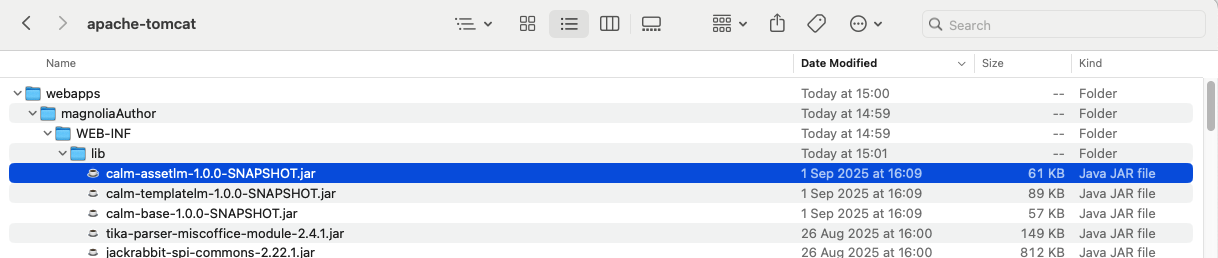
Copy the extension jar file into the “WEB-INF/lib” folder of your “magnoliaAuthor” webapp folder in your application server. See also related Magnolia documentation for Installing a Module as Jar File.
The following screenshot shows the installation in the standard tomcat setup coming with a Magnolia jumpstart installation.
3. Restart Server
Restart your Magnolia server instance again and wait until it has started up properly.
4. Check Results
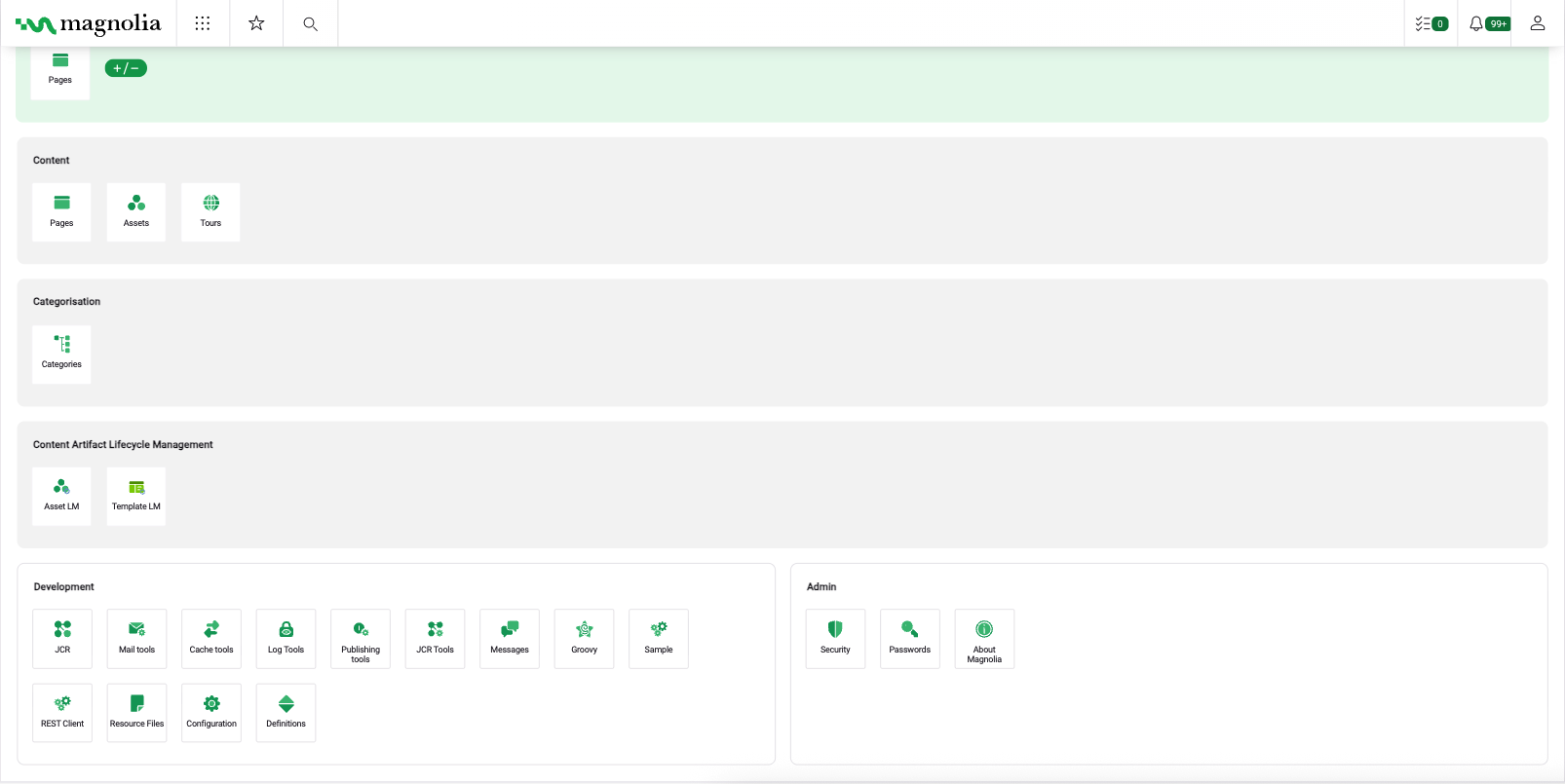
After starting up go to the admin central. You should find a new section “Content Artifact Lifecycle Management” with the “Asset LM” app as shown in screenshot below. Clicking on the app icon will start the asset lifecycle management.